Settings
The Settings window edits config.json for you. This page goes through it page by page. For the file itself, see Config file.
Open Settings
Any of these opens the window:
- Right-click the tray icon and choose Settings….
- Open the folder menu and choose Settings… at the bottom.
- Run
Folderite.exe --settings.
Settings is a separate process from the tray app. Only one Settings window opens at a time: choosing Settings… while it is open brings it to the front, and a second --settings does nothing.
The window has a list of pages on the left. In order, they are Favorites, Actions, Menu, Dialogs, Exclusions, History and General. The page title and a Preview menu button sit above each page, and a status line sits below it.
How saving works
There is no Save button. Settings writes config.json about 0.4 seconds after your last change, and once more when you close the window. The status line says Saved when it has written the file. The tray app notices the new file and reloads it, so a change takes effect without restarting Folderite.
Two things to know:
- Settings rewrites the whole file each time, so
//comments inconfig.jsonare not kept. - If you edit
config.jsonin a text editor while Settings is open and have no unsaved change in Settings, the window reloads the file and says Reloaded: config.json changed on disk.
The History page and the Start with Windows and Pause Folderite switches on General are not part of config.json. They take effect as soon as you use them.
When config.json has an error
If config.json can't be read (a missing bracket, say), a red banner appears under the page title: config.json has an error, so changes here are not saved. Below it is the parser's message. Settings turns autosave off so it doesn't overwrite a file you are in the middle of fixing. The status line says Autosave is off: config.json has errors, and any edit you make shows Not saved: fix config.json or reload.
The banner has two buttons:
| Button | What it does |
|---|---|
| Open file | Opens config.json in your default editor for .json files, or in Notepad if there is none. |
| Reload | Reads the file again. If it is valid now, the banner goes away and autosave comes back. Edits made in Settings while autosave was off are discarded. |
Preview menu
Preview menu, at the top right of every page, pops up the real folder menu built from the settings as they are now, even before they are saved. The folder it pretends to be over is your user profile folder. Picking an item does nothing; the status line says what would have happened, for example Preview: would open D:\Projects.
Status line
The line under the page shows the last thing that happened:
| Text | Meaning |
|---|---|
| Saved | config.json was written. |
| Not saved: … | The write failed (the reason follows), or autosave is off because of a config error. |
| Reloaded: config.json changed on disk | The file was edited outside Settings and Settings picked up the change. |
| Autosave is off: config.json has errors | See the banner above. |
| Preview: … | What a pick in the previewed menu would do. |
| Moving settings… | Change location is working. |
Favorites
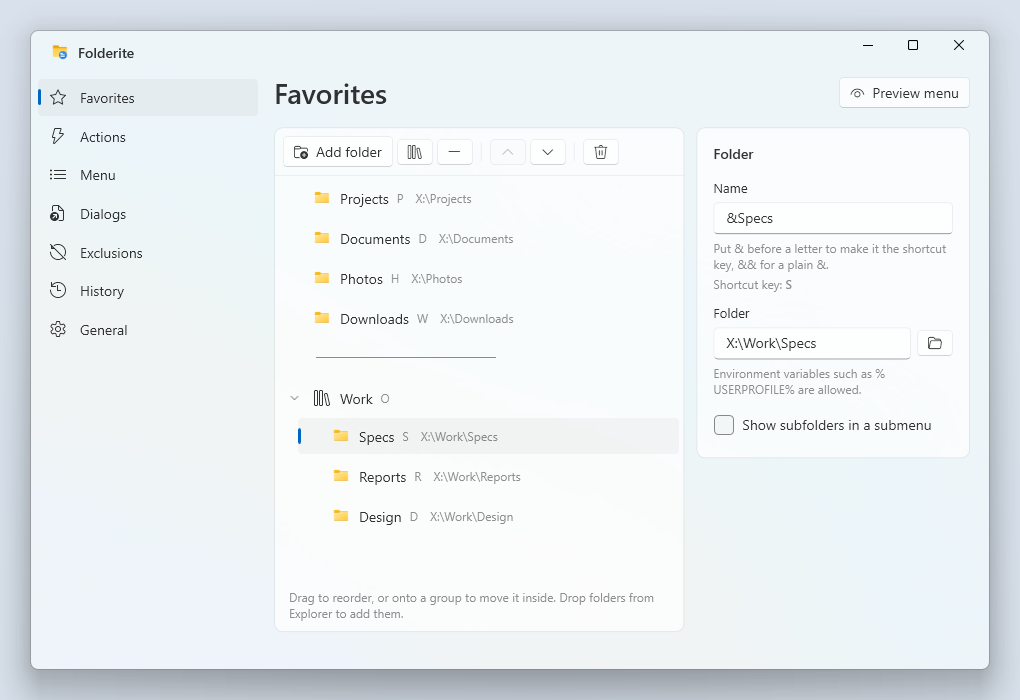
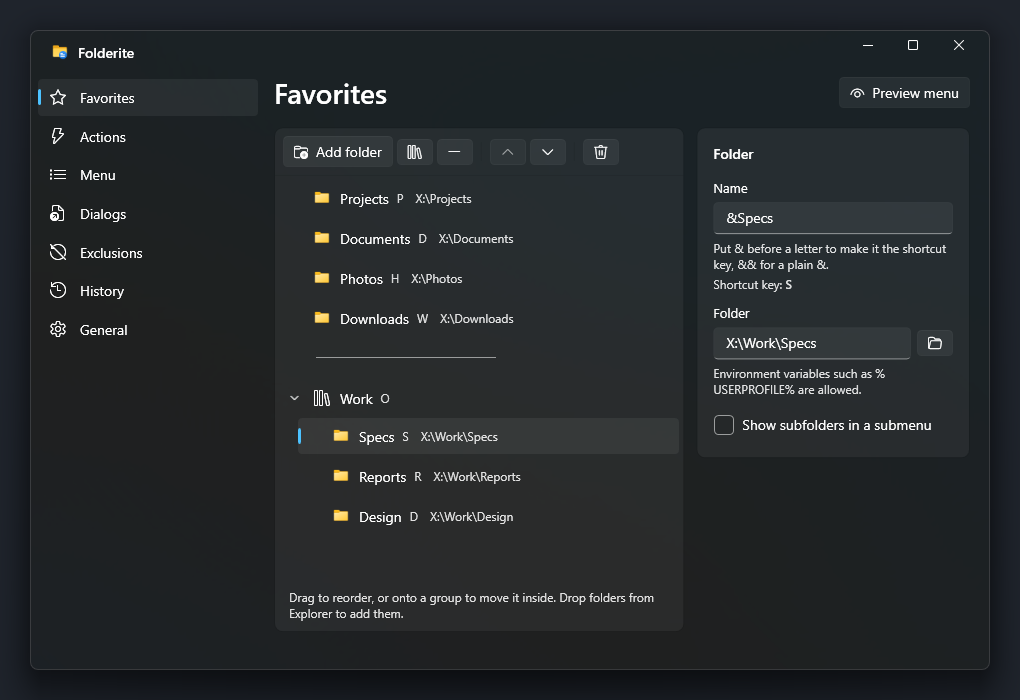
Favorites are the folders and submenus at the top of the folder menu. The page has the tree on the left and the details of the selected item on the right. A new config.json starts with Home, Desktop, Downloads and Documents.
Each row in the tree shows an icon, the name, its shortcut key (the letter after the name), and for folders the path. A warning triangle after a folder means it does not exist. The check only applies to paths on a drive letter, and the favorite stays in the menu either way.
Adding
The toolbar above the tree has these buttons:
| Button | What it does |
|---|---|
| Add folder | Opens a folder picker that accepts several folders at once. Each becomes a favorite named after its folder. |
| Add a group (submenu) | Adds a group named New group. |
| Add a separator | Adds a line between menu items. |
| Move up, Move down | Moves the selected row one place among its siblings. |
| Remove (Del) | Removes the selected row. There is no confirmation. |
Where the new row goes depends on the selection. With a group selected, it goes inside the group at the end. With any other row selected, it goes right after that row, at the same level. With nothing selected, it goes at the end of the top level. The row you add is selected, ready to edit.
In the tree, Del removes the selected row and Alt+Up and Alt+Down move it.
Reordering and nesting
Drag a row to move it. A line shows where it will land, or an outline appears around a group when you are dropping into it:
- On a folder or separator, the top half of the row means before it and the bottom half means after it.
- On a group, the top 30 percent means before the group, the bottom 30 percent means after it, and the middle means inside it, at the end.
- Dropping below the last row puts the item at the end of the top level.
You can't drop a group into itself or into one of its own subgroups. Groups can nest as deeply as you like.
Dropping folders from Explorer
Drag one or more folders from an Explorer window onto the tree. Each one becomes a favorite, placed where you drop it, in the order you dragged them. Files in the drop are ignored. With nothing in the tree yet, the empty list says No favorites yet. Add a folder, or drop one here.
Folder details
Select a folder to edit it:
| Field | What it does |
|---|---|
| Name | The text in the menu. Leave it empty to show the folder's own name. See Shortcut keys. |
| Folder | The path. The button next to it opens a folder picker. Environment variables such as %USERPROFILE% are allowed. |
| Show subfolders in a submenu | Off by default. When on, the favorite becomes a submenu listing the folder's subfolders. |
| Sort by name / Newest first | Shown when subfolders are on. Sort by name is the default and uses Explorer's order, so file2 comes before file10. Newest first orders by last modified time. |
With subfolders on, the first item in the submenu is the folder itself, in bold, followed by a line and then the subfolders. The list is read when you open the submenu. Hidden and system folders are left out, and a long folder shows only the first 100 subfolders, with a note saying so. A submenu row can't be clicked itself, which is why the folder is repeated as the first item.
The file stores this as "showSubfolders": true and "sortSubfolders": "newest". By default neither is written.
Groups and separators
A group has only a Name. In the menu it is a submenu holding the group's rows. A separator has nothing to set. In config.json it is an entry with the name -.
Shortcut keys
Put & before a letter in a name to make it the shortcut key for that item. With the menu open, pressing the letter picks the item, or opens the submenu if it is a group. Write && for a literal &. For example, &Projects is picked with P, and R&&D shows as R&D. The details panel shows Shortcut key: with the letter it found.
If two items in the same menu use the same letter, pressing it moves between them. If no item marks the letter you press, Folderite uses the items whose name starts with it. A new folder you add gets no &, so the first-letter rule applies until you add one.
Actions
Actions are commands that run on the folder the menu was opened over. They appear in the submenu at the top of the menu, under the name of the current folder, after Copy path. Actions need a current folder, so they are not there in the menu you get from the tray icon.
A new config.json has one action, Open &terminal here, which runs wt.exe with -d "{path}".
The toolbar has Add action, Move up, Move down and Remove. Unlike Favorites, Del does not remove an action: use the Remove button. A new action is named New action, has no command, and has the arguments "{path}".
| Field | What it does |
|---|---|
| Name | The text in the menu. & marks the shortcut key, as for favorites. |
| Command | The program or script to run. The button opens a file picker titled Choose a program that lists .exe, .cmd, .bat and .ps1 files, or all files. Environment variables such as %LOCALAPPDATA% are expanded. |
| Arguments | The command line passed to the program. |
Placeholder
{path} is the only placeholder. Folderite replaces every {path} in Arguments with the full path of the current folder. It adds no quotes of its own, so put them around it: -d "{path}". Placeholders are not expanded in Command, and % variables are not expanded in Arguments.
The program starts with the current folder as its working directory. If it can't start, a tray notification says <action name> failed: followed by the reason.
Example actions:
| Name | Command | Arguments |
|---|---|---|
Open in &VS Code |
code |
"{path}" |
Open &terminal here |
wt.exe |
-d "{path}" |
Menu
Which sections the folder menu has. The page heading is Sections.
| Setting | Default | What it does |
|---|---|---|
| Recent folders | 15 | A slider from 0 to 50. The number of folders in the Recent submenu. At 0 the submenu is hidden. |
| Show open windows | On | Adds an Open windows list with the folders open right now in Explorer and the other supported file managers, up to 10. |
| Show clipboard folder | On | Adds a Clipboard item when the clipboard holds a folder path, unless it is the folder you are already in. |
| Show drives | Off | Adds a Drives submenu with the free space on each drive. |
| Work on the desktop | On | Also shows the menu on the desktop. Choosing a folder there opens it in a new Explorer window. |
The folders in Recent come from History. The favorites and the two items at the bottom (Settings… and Reload) are always there, and the current folder shows whenever Folderite can read it. See The folder menu for what each section looks like.
Dialogs
Start folders for Open and Save dialogs. Open and Save dialogs explains how the feature behaves, including what wins when both settings apply.
| Setting | Default | What it does |
|---|---|---|
| Start in the last folder used | Off | When an app shows an Open or Save dialog, start it in the folder you last used in that app. |
Under Folders for specific apps, each row sets a fixed start folder for one program:
| Field | What it does |
|---|---|
| App box | The program's file name without .exe, for example notepad or winword. If you type .exe, Folderite drops it. Case does not matter. |
| Folder box | The folder the dialog starts in. Environment variables are allowed. |
| Browse button | Opens a folder picker to fill the folder box. |
| Remove this app | Deletes the row. |
Add app adds a row and puts the cursor in its App box. A row with an empty App or Folder box is not saved. A folder set here is used for that app's dialogs even when Start in the last folder used is off.
Exclusions
Don't remember these folders
Folders that match a pattern here are never added to Recent or to History. Patterns are matched against the whole path, ignoring case. * matches any text and ? matches one character. For example:
C:\Windows\*
*\node_modules\*
The Add pattern button adds a row and puts the cursor in it. The button at the end of a row removes it. Empty rows are not saved. The patterns also hide folders that are already in history, so a new pattern takes effect for the menu straight away.
Don't open the menu in these apps
Programs listed here are ignored: Folderite does not open its menu over them with the middle button, and it does not set a start folder in their dialogs. The keyboard shortcut still opens the menu with one of them in front, but with no current folder, as for an unsupported window. The list is shown as chips, each with a button to remove it.
| Control | What it does |
|---|---|
| Text box and Add | Type a program name without .exe, such as notepad, and press Enter or Add. A trailing .exe is dropped, and a name already in the list is skipped. |
| Add app... | Lists the programs running now that have a window (not Folderite, and not ones already listed). Pick one to add it. |
History
The folders Folderite has seen, ranked by how often and how recently you visit them. The Recent submenu uses the same ranking and adds a boost for folders used in the app the menu is opened over. This page reads history.json, not config.json, and its changes apply right away. The list refreshes each time you open the page.
Each row shows the folder name, its parent folder, and when you last used it (just now, 5 min ago, 3 h ago, yesterday, 12 days ago, and a date after 30 days). Hover over a row for the full path. Under the list, a line shows how many folders are listed out of the total.
| Control | What it does |
|---|---|
| Search folders | Shows only folders whose path contains the text, ignoring case. |
| Refresh (Reload the list) | Reads the list again. |
| Remove | Forgets the selected folder. Del does the same. The button is disabled until you select a row. |
| Clear all | Forgets every folder, after asking you to confirm. This can't be undone. |
| Double-click a row | Opens that folder in a new Explorer window. |
Removing a folder does not stop it coming back: if you visit it again, it is recorded again. To keep a folder out for good, add a pattern under Exclusions.
General
Start with Windows
Off until you turn it on. When on, Folderite starts in the background each time you sign in. It adds a value to your user's Run registry key, so it needs no administrator rights.
Pause Folderite
When on, middle-click and the keyboard shortcut do nothing until you turn it off. Left-clicking the tray icon still opens the menu. The state is not saved in config.json: it applies to the running Folderite only. If Folderite is not running, the page says Folderite isn't running. and shows a Start Folderite button instead of the switch.
Keyboard shortcut
A shortcut that opens the folder menu for the window in front, as an alternative to the middle button. Empty by default, which means the middle button only.
Click the box, then press the keys. Settings records what you press:
- It needs at least one of Ctrl, Alt, Shift or Win. Otherwise the box says Add Ctrl, Alt, Shift or Win. Function keys (F1 to F24) can be used alone.
- Backspace or Delete clears it, and so does the Clear button. Esc leaves the box without changing anything.
- Shortcuts are saved as text, such as
Win+Shift+F, in thehotkeykey.
Folderite tries to register the shortcut a moment after you set it. If another program already uses it, a line under the box says This shortcut is already used by another app. Pick another one. and a notification may appear from the tray.
Configuration
| Control | What it does |
|---|---|
| Config file | The full path of config.json. A Portable badge appears when the settings sit next to Folderite.exe. Under the path, a line says Default location, Custom location or Portable. |
| Change location… | Pick a folder to move config.json and history.json to. See Files and logs. |
| Use default | Moves them back to %APPDATA%\Folderite. Shown only when the location is not the default. |
| Open file | Opens config.json in your editor. |
| Open folder | Opens the settings folder in Explorer. |
Moving the settings quits Folderite, moves the files and starts it again, so the window reopens afterwards with a note in the status line. If the new folder already has a config.json, Settings asks whether to use that one or replace it with your current settings. A replaced file is kept as config.json.bak. Choosing the folder that holds Folderite.exe asks you to confirm, because it makes Folderite portable.
About
Shows Folderite followed by the version you are running.