Getting started
This page takes you from a fresh start to your first menu, your first favorite, and a Save dialog that jumps to a folder. It assumes Folderite is installed.
What happens on first run
Run Folderite.exe. There is no setup window and no welcome screen. Two things happen:
- A Folderite icon appears in the notification area. Hover it to see the version.
- Folderite creates
%APPDATA%\Folderite\config.jsonwith a starter setup, and starts watching which folders you use.
The starter setup gives you four favorites (Home, Desktop, Downloads, Documents) and one action (Open terminal here). It shows open windows and the clipboard folder, and leaves the Drives section off. It sets no keyboard shortcut. Install and uninstall has the full list.
If config.json has an error when Folderite starts or when you choose Reload, Folderite shows a "Folderite: config error" notification with the message and does not use the broken file.
Your first middle-click
- Open an Explorer window.
- Middle-click anywhere in it, such as the empty part of the file list. On Windows 11, do not click the tab row, because middle-clicking a tab still closes it. Everything below the tab row counts.
- The folder menu opens at the pointer.
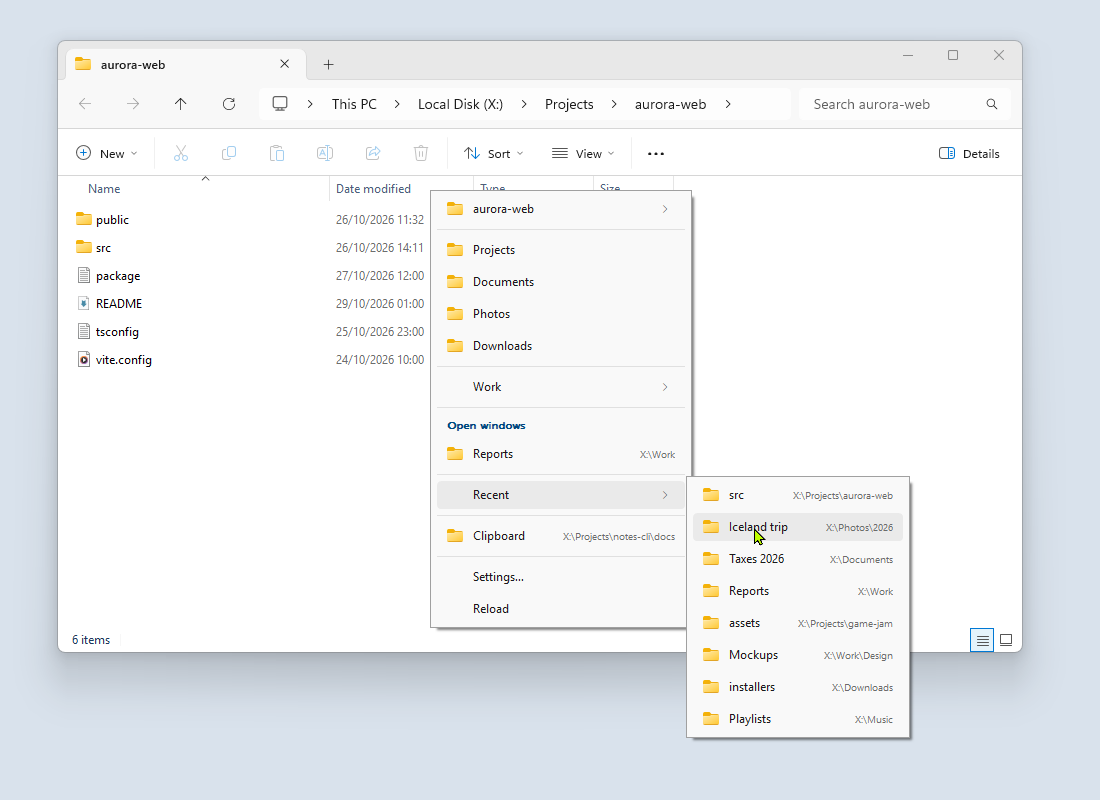
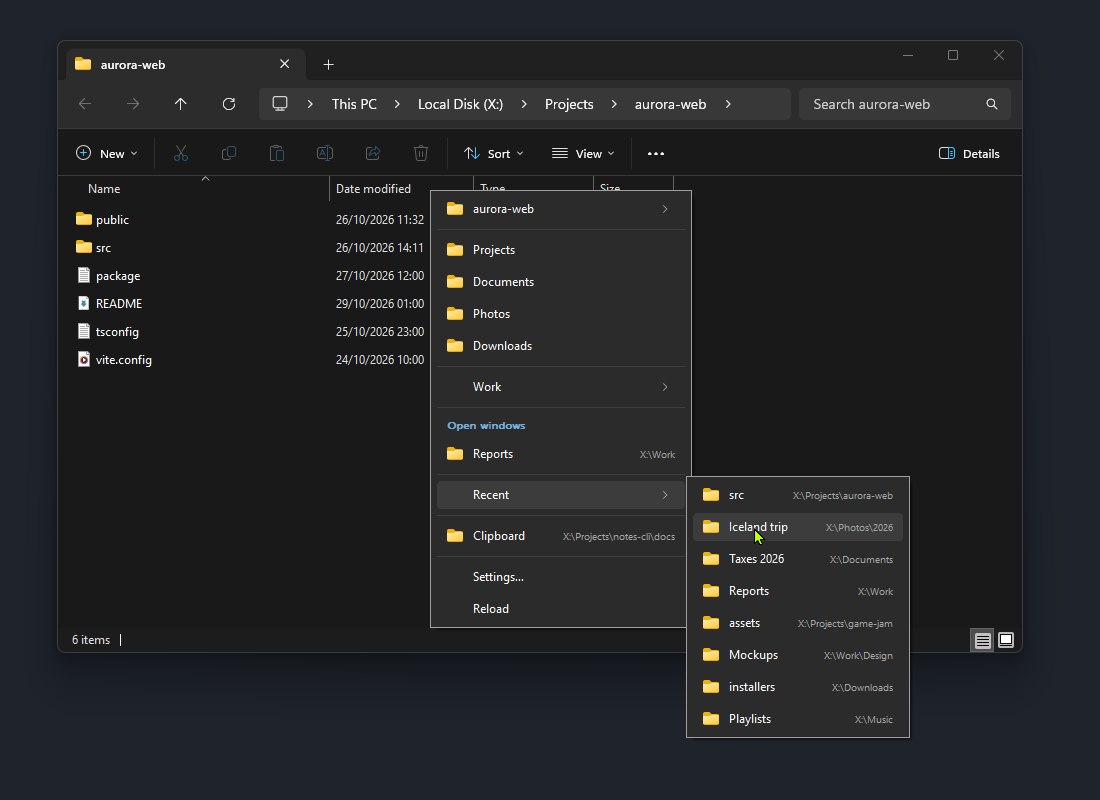
From the top, the menu shows the folder you are in (as a submenu with Copy path and your actions), your favorites, Open windows with the folders open in other windows, a Recent submenu, the Clipboard folder when you have copied a folder path, and Settings… and Reload. On a fresh install, Recent is empty and hidden until Folderite has seen you visit a folder besides the one you are in. The folder menu explains each section and when it shows.
Pick a folder
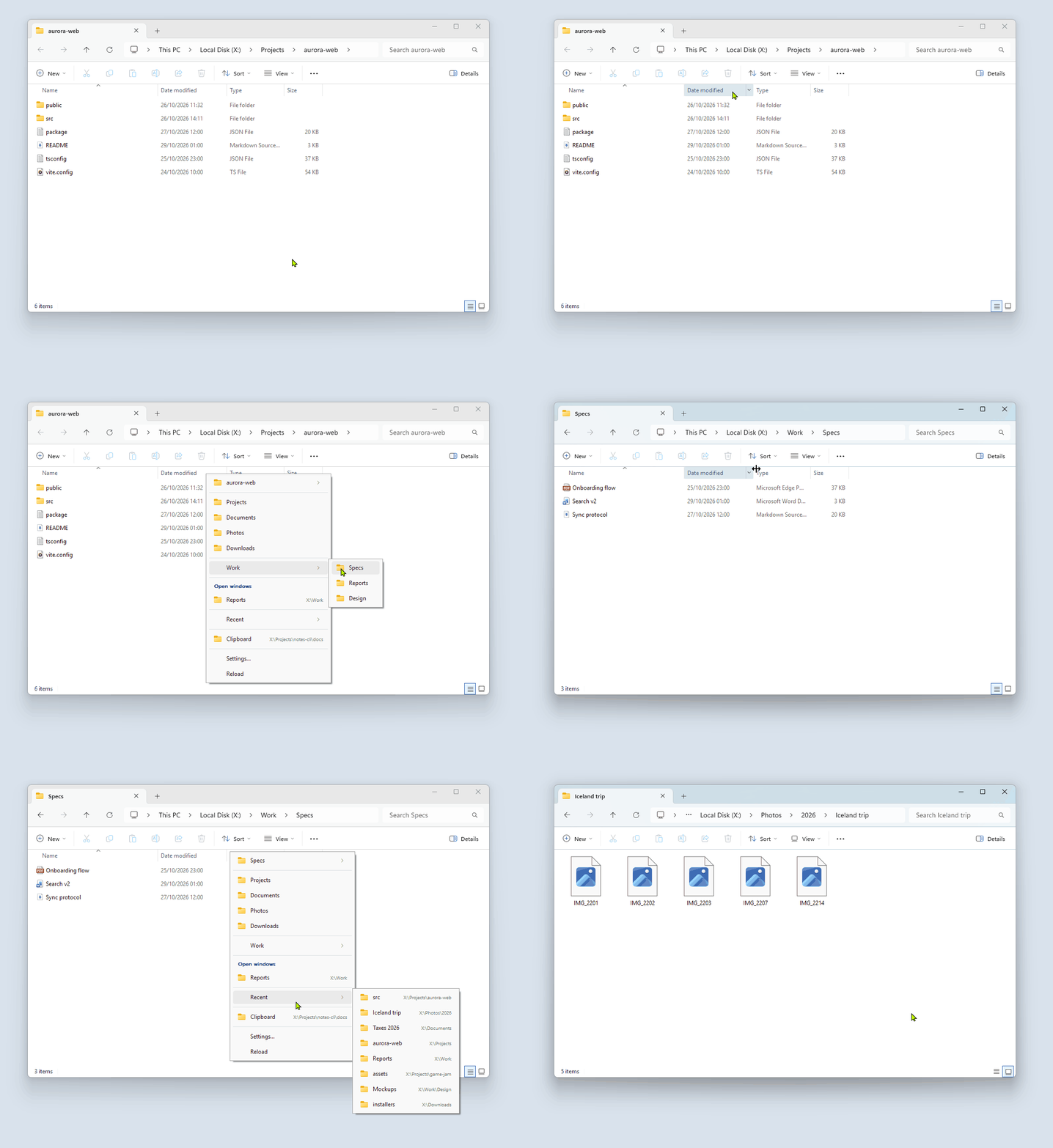
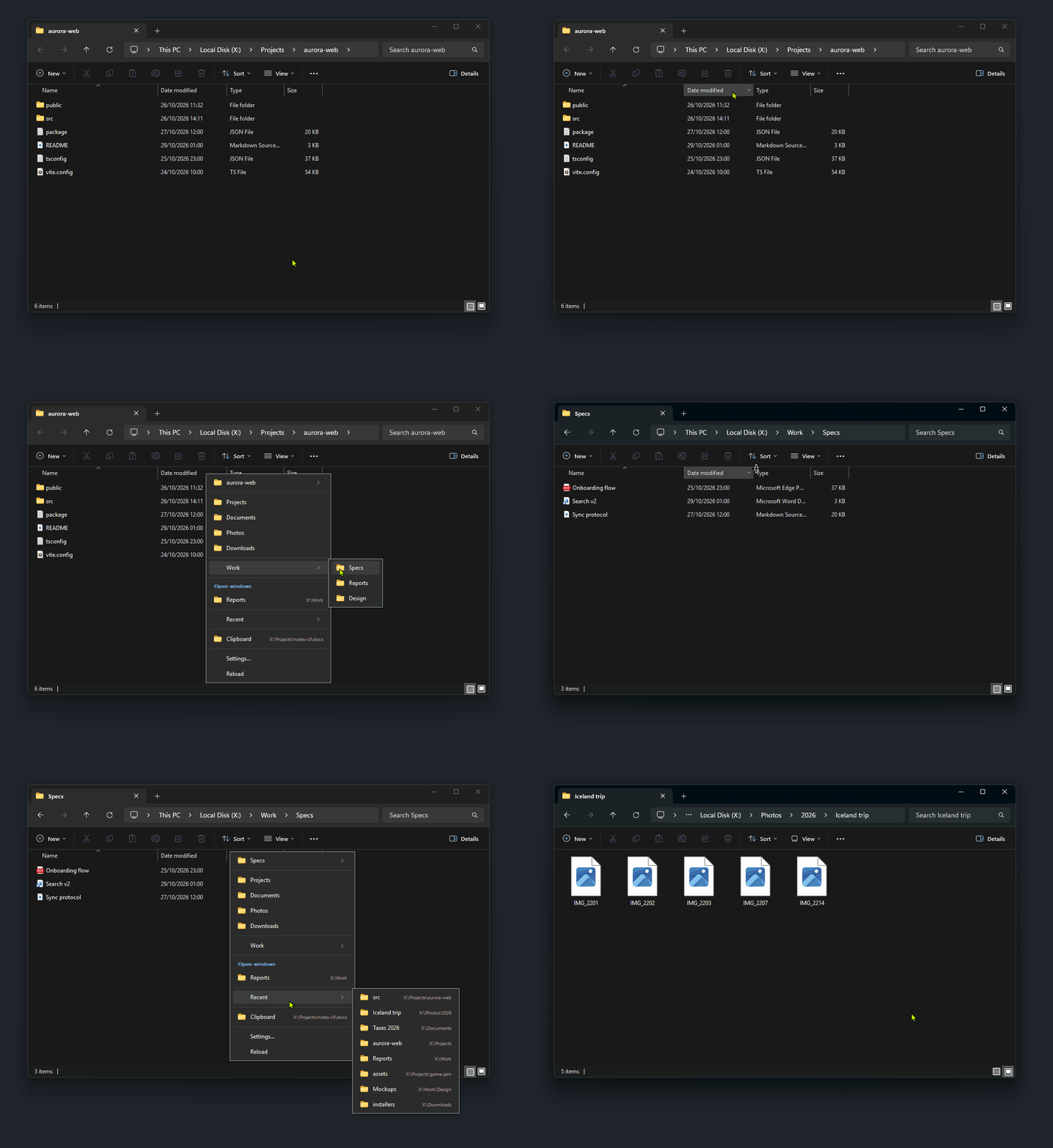
Click a folder, or press the letter underlined in its name. With the starter favorites, W picks Downloads and O picks Documents. D is shared with Reload, so it highlights Desktop first, and Enter picks it. The window you clicked in goes to that folder. In Explorer with tabs, the tab you are in is the one that changes.
To close the menu without picking, press Esc or click away.
Add your first favorite
There are two ways. Both save right away.
From the menu. Middle-click while you are in the folder you want. Point at the first item, the one named after the current folder. In its submenu, choose Add to favorites. The folder goes to the end of your favorites list. The item is not there when the folder is already a favorite.
From Settings.
- Open Settings: right-click the tray icon and choose Settings…, or choose Settings… at the bottom of the folder menu.
- Stay on Favorites, the first page.
- Click Add folder and choose one or more folders. You can also drag folders from Explorer into the list.
- Select a favorite to change its Name or its Folder. Put
&before a letter in the name to make it the shortcut key, for example&Projects. - Click Preview menu to see the real menu with your changes.
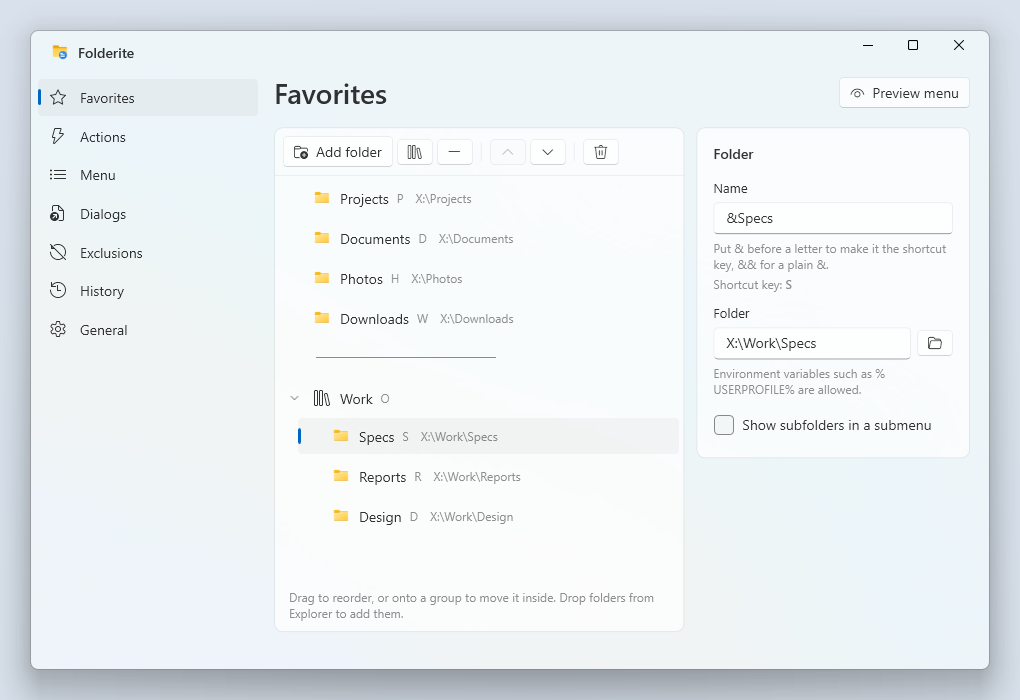
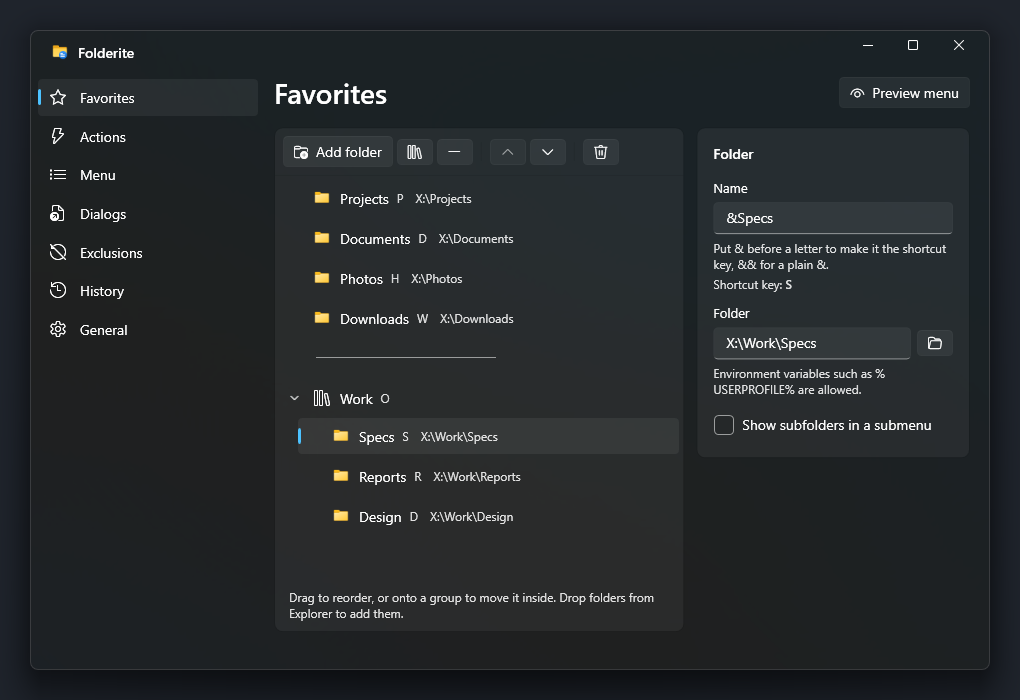
Changes save as you make them, and the running Folderite picks them up straight away. Settings covers every page, including groups, separators and subfolder submenus.
Use it in a Save dialog
Folderite works in Open and Save dialogs the same way.
- In any app, open a Save As or Open dialog, for example in Notepad.
- Middle-click anywhere in the dialog.
- Pick a folder. The dialog jumps there.
If you had typed a file name already, it stays.
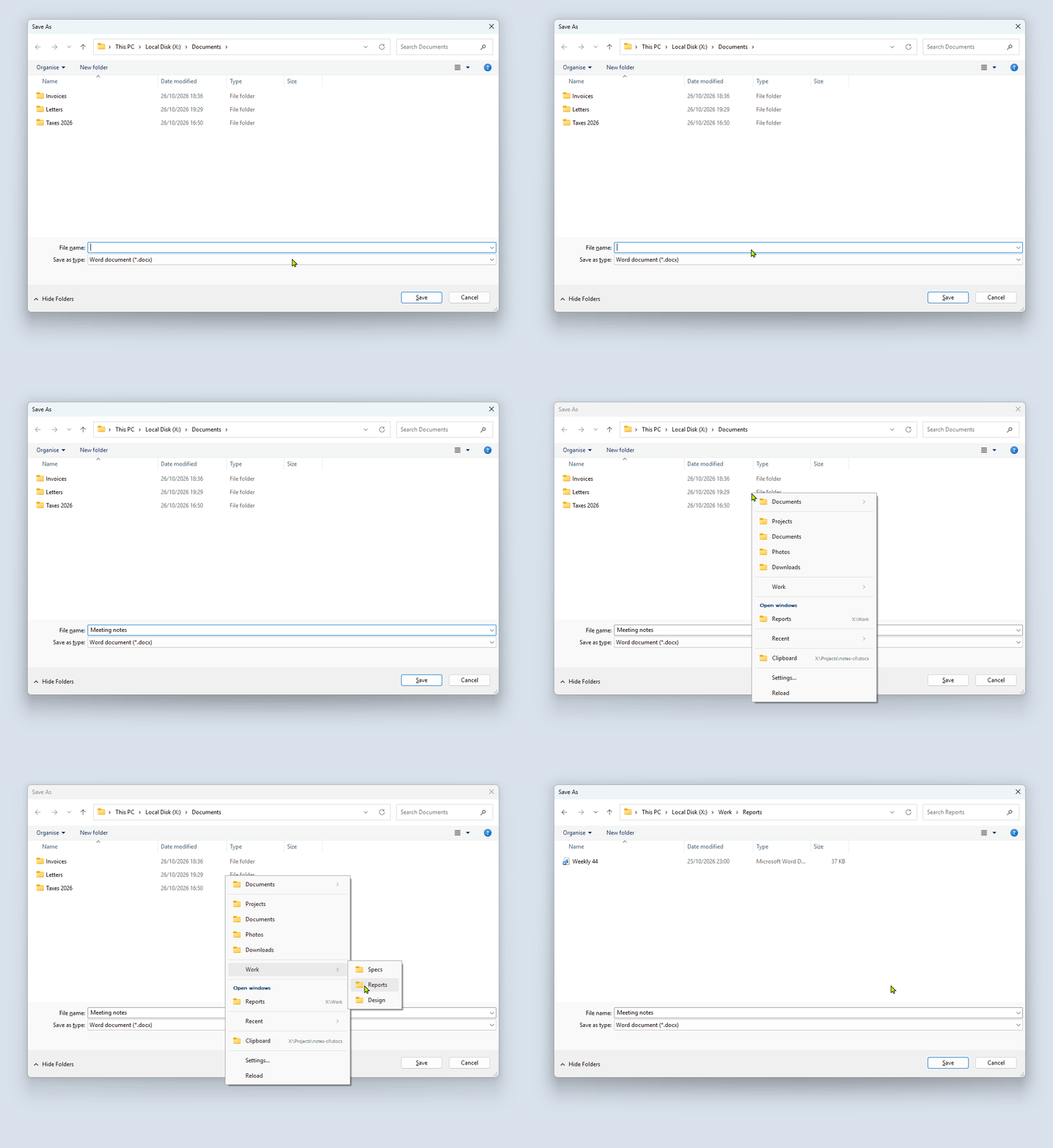
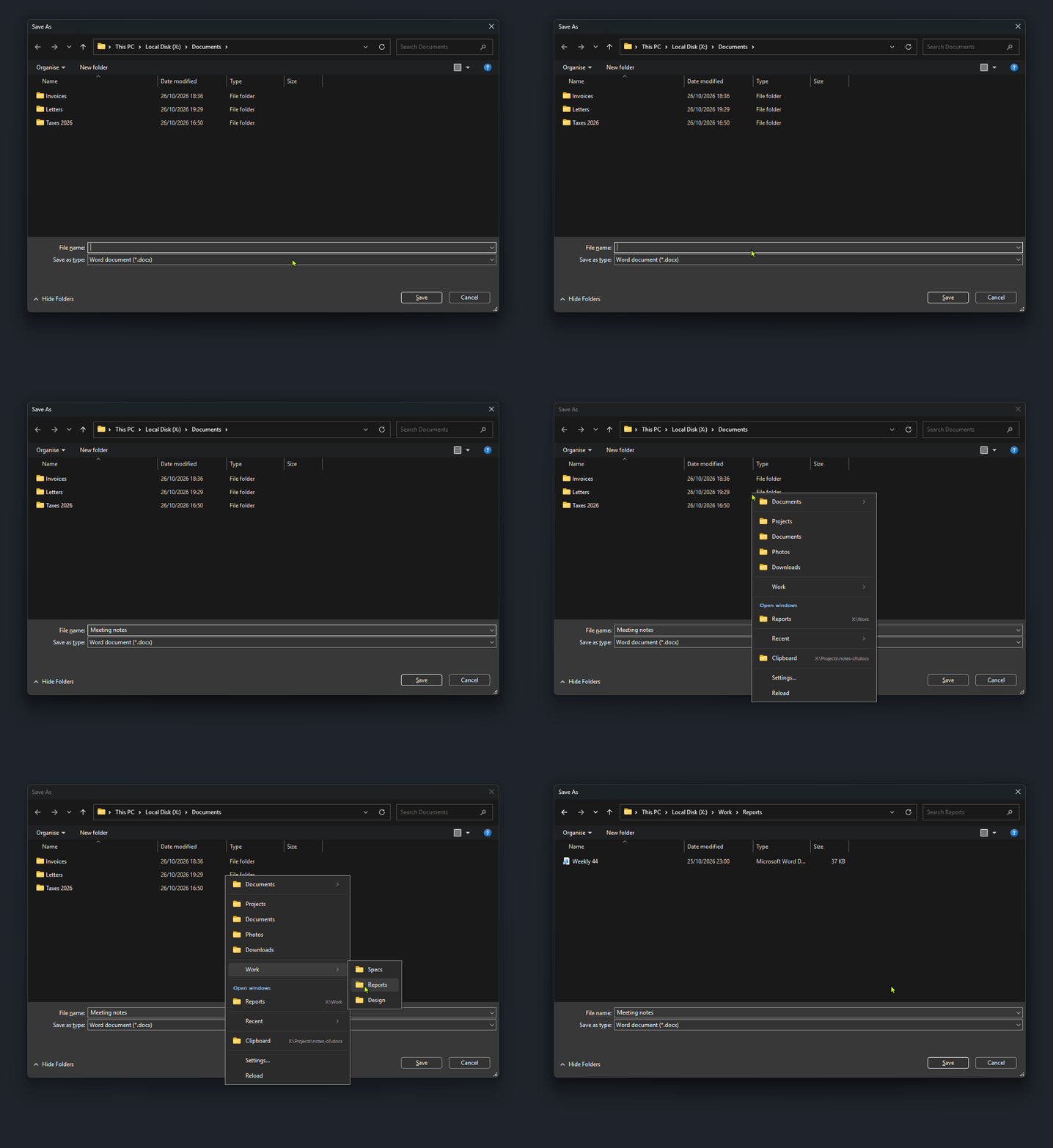
Folder pickers, such as "Select Folder" dialogs, work too: Folderite navigates the picker instead of accepting a folder. Folderite can also start new dialogs in a folder you choose. See Dialogs.
If you have no middle button
Left-click the tray icon to open the menu. Or set a keyboard shortcut under Settings, General, Keyboard shortcut. The shortcut opens the menu for the window in front. See The folder menu.
Where to go next
- The folder menu: every section of the menu, how recent folders are ranked, and where middle-click is left alone.
- Settings: favorites, actions, menu sections, exclusions and the rest.
- Dialogs: start folders for Open and Save dialogs.
- Supported apps: Explorer, file dialogs, Directory Opus, Total Commander, XYplorer, Blender and the desktop.
- Config reference: the
config.jsonkeys, if you prefer to edit the file.