Supported apps
Folderite opens its menu when you middle-click in one of the windows below, or press your keyboard shortcut while one is in front. Picking a folder sends that window there. Anywhere else, middle-click does what it always did.
In every supported window, the first item of the menu is the current folder: its name, with the shell icon, and a submenu arrow. Open it for Copy path, your custom actions and Add to favorites. If that item is missing, Folderite couldn't read the window's folder. Picking a folder still works in most of those cases. The sections below say when.
| App | Reads the current folder | Sends the window to a folder |
|---|---|---|
| Windows Explorer | Yes, from the active tab | Yes |
| Open and Save dialogs | Yes | Yes |
| Directory Opus | Yes, from the pane you clicked | Yes |
| Total Commander | Yes, from the panel you clicked | Yes (not yet tested on every setup) |
| XYplorer | Yes, from the title bar | Yes (not yet tested on every setup) |
| Blender | No | Yes |
| The desktop | Always the Desktop folder | Opens a new Explorer window |
Windows Explorer
Works in Explorer windows, including Windows 11 windows with tabs.
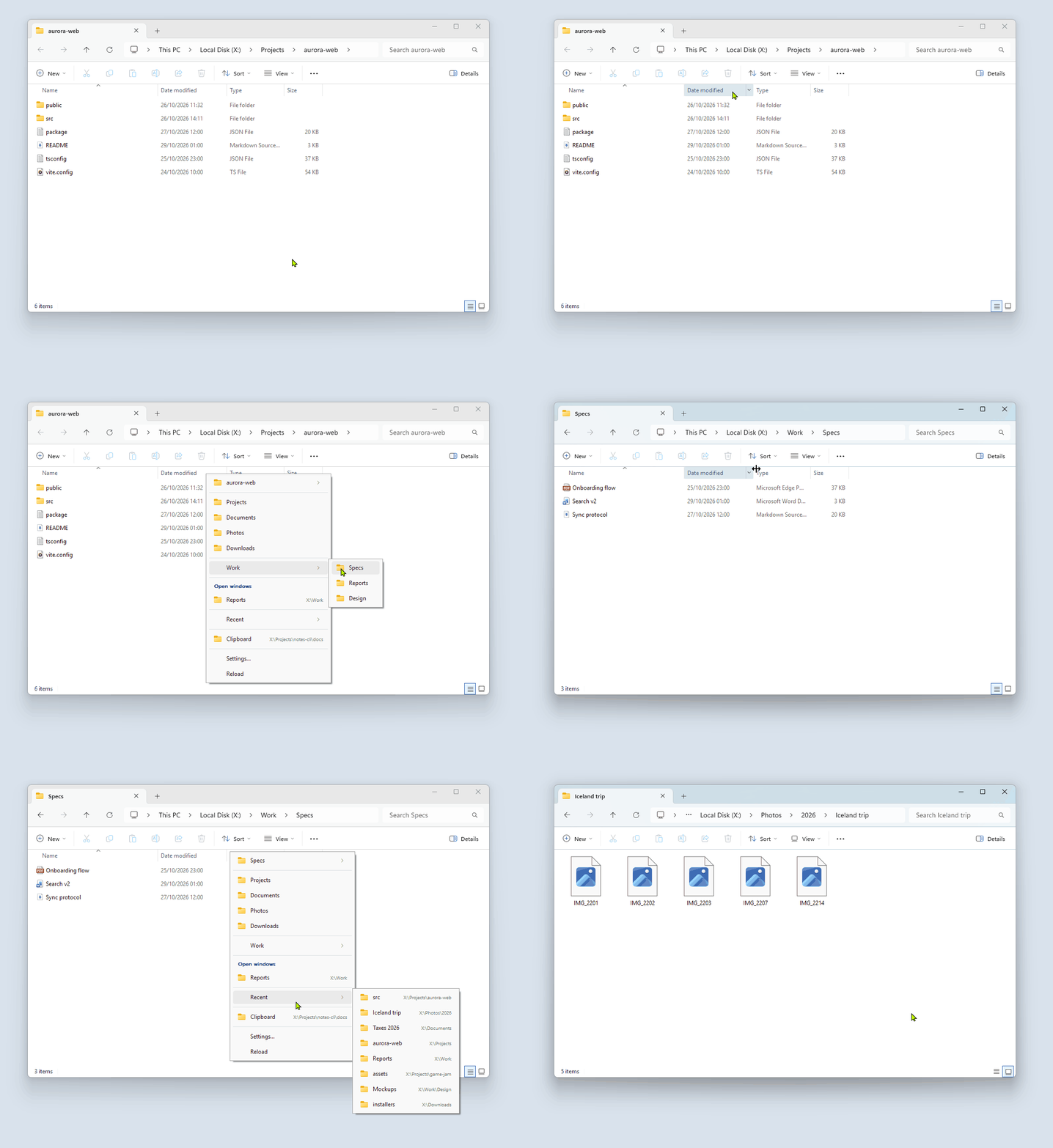
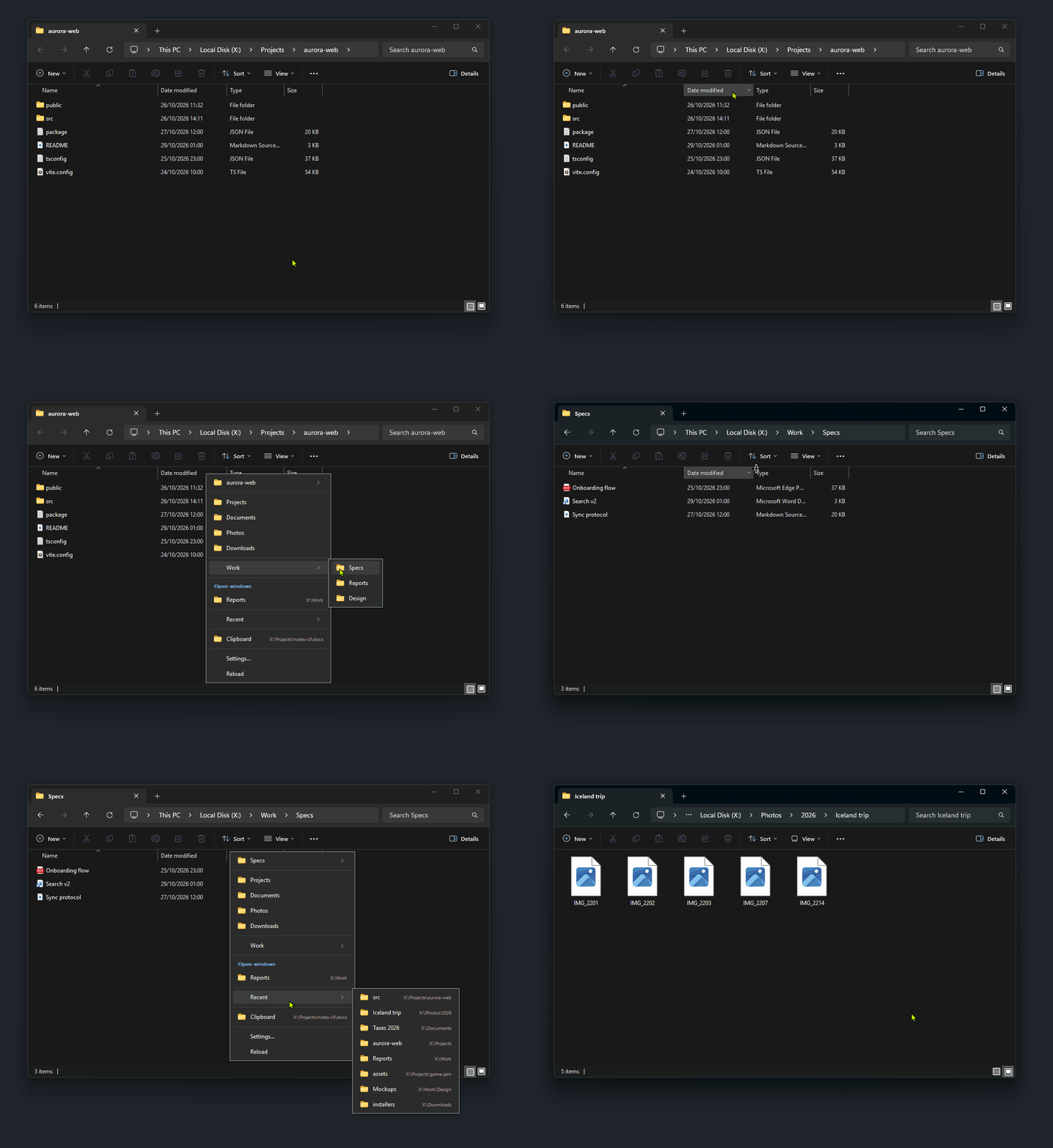
What works. Middle-click on the file list or any other part of the window except the tab row. The menu opens, and the folder you pick replaces what the window shows. With several tabs open, the active tab navigates. The Open windows section lists the folder of each Explorer tab. It shows each folder once, and at most 10 folders in all, counting other apps.
How you can tell. The top item of the menu is the folder of the active tab. In the picture, it is aurora-web.
Limits.
- Middle-click on a tab, or anywhere in the title bar row beside the tabs, keeps its normal meaning. A middle-click on a tab still closes it. An Explorer window without tabs has no such exemption.
- Virtual folders have no file system path: This PC, Home, and search results. In those, the menu has no current folder item. You can still pick a folder to leave them.
- If Explorer can't be driven, a balloon from the tray icon says "Couldn't open ... in Explorer."
Keyboard shortcut. It works in Explorer and uses the active tab. It opens the menu at the mouse if the mouse is over the window, and at the center of the window if not. The tab-row exemption doesn't apply, because no click is involved.
Open and Save dialogs
Works in the standard Windows Open, Save As and folder-picker dialogs, in any program that uses them (Notepad, Office, browsers). The folder you pick replaces the dialog's folder, and the file name you already typed stays. Folder pickers navigate instead of accepting the folder.
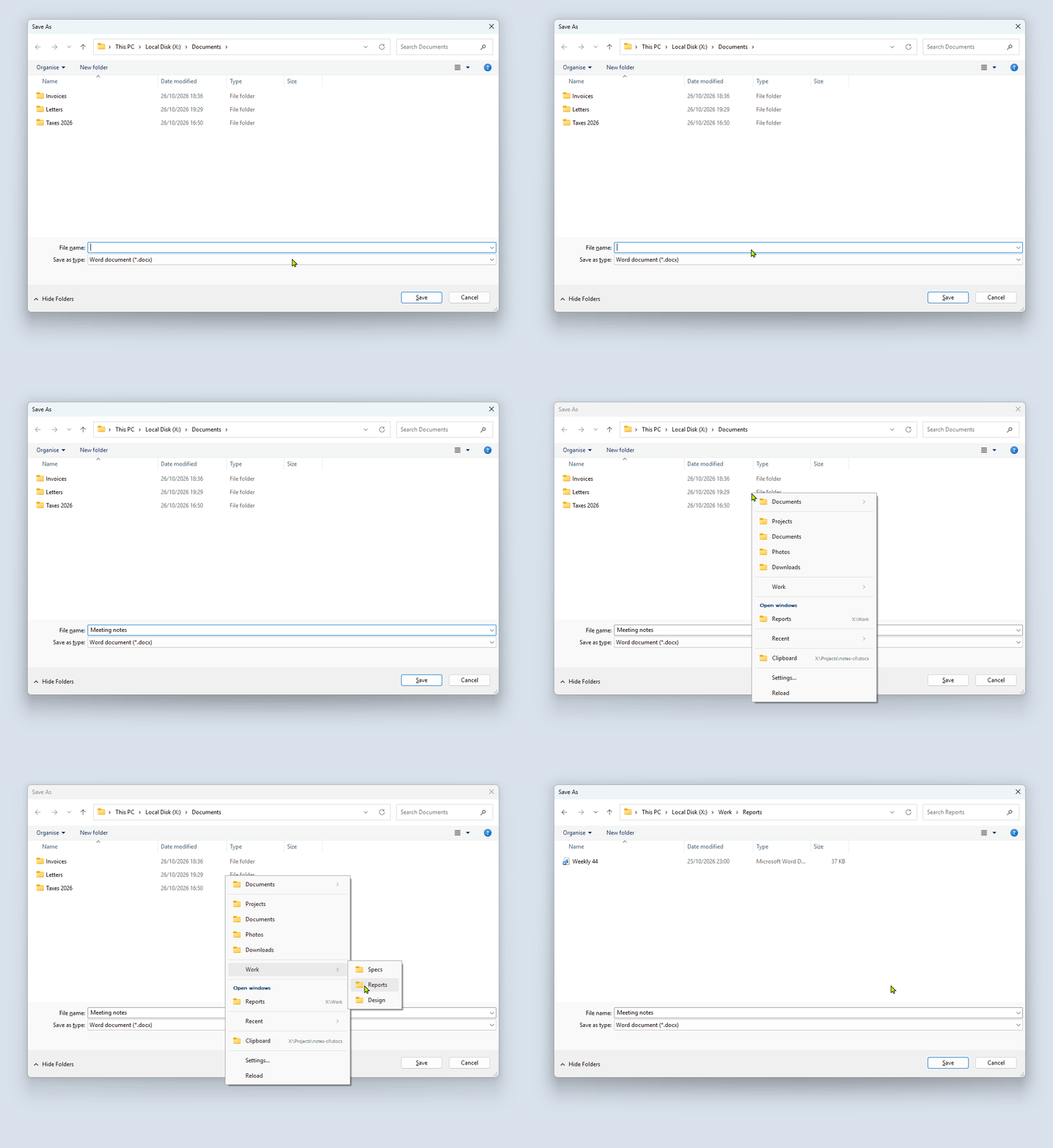
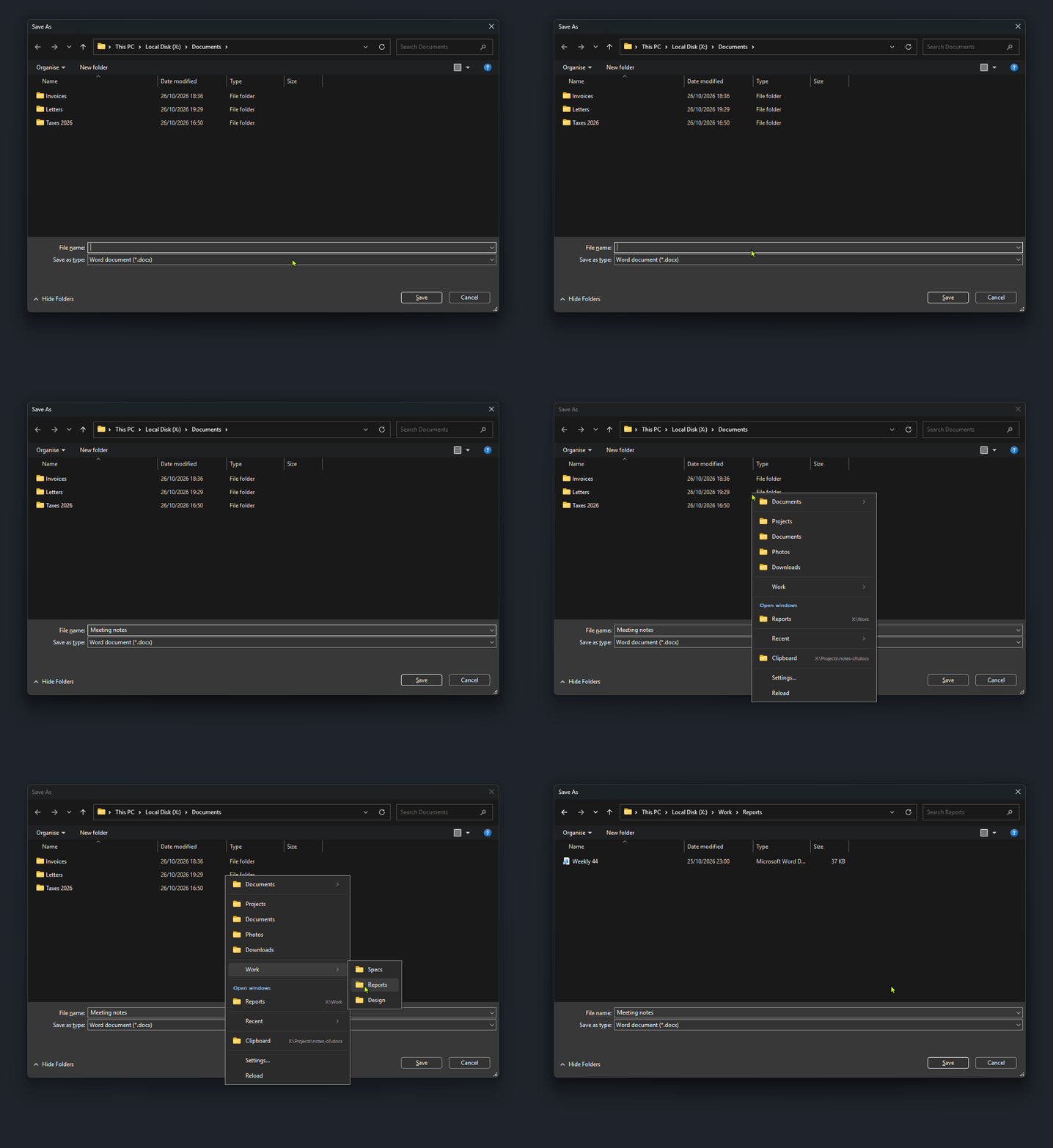
How you can tell. The top item is the folder shown in the dialog's address bar.
Limits. A program that draws its own file dialog is not recognized. If the dialog's address bar can't be read, there is no current folder item.
You can also have new dialogs start in a folder you choose. That is covered in Open and Save dialogs.
Keyboard shortcut. It works with the dialog in front, the same as a click.
Directory Opus
Works in Directory Opus listers, in either pane and in any tab. Folderite talks to Opus through dopusrt.exe, the command-line program that comes with it. It looks for it next to the running dopus.exe first, then in C:\Program Files\GPSoftware\Directory Opus\.
What works. Middle-click anywhere in the lister. The menu shows the folder of the tab you clicked, and the folder you pick goes into that pane. If you click the pane that isn't the active one, Folderite makes it the active one first, then sends the folder there. The Open windows section lists the tabs of all listers.
How you can tell. The top item is the folder of the tab under the cursor. If the click isn't on a tab, it is the folder of the source pane.
Limits.
- Each time the menu opens, Folderite starts
dopusrt.exeand waits up to two seconds for it. Ifdopusrt.execan't be found or doesn't answer, the menu has no current folder and navigation fails with a tray balloon. - Folderite brings the lister you clicked to the front before sending the folder, because Opus sends it to the lister that was active most recently.
Keyboard shortcut. It works with Opus in front. Folderite uses the control that has the keyboard focus to pick the pane, so it is the focused side that navigates. If the focus isn't on a tab, it uses the source pane.
Total Commander
Works in Total Commander (the TTOTAL_CMD window). It needs Total Commander 9 or later.
What works. Middle-click anywhere in the window. The menu shows the folder of the panel you clicked, and the folder you pick goes into that panel. The Open windows section lists both panels of every Total Commander window.
How you can tell. The top item is the folder of the clicked panel. If Folderite can't tell which panel the click was in, it shows the active one and sends the folder to the source panel.
Not tested yet. Two cases haven't been tried on a real Total Commander yet, so treat them as unconfirmed:
- Which panel gets the folder when you click in the left or the right one.
- Paths with non-ASCII characters. The folder is sent as UTF-8, which should work, but nobody has checked it.
If either goes wrong for you, tell us.
Limits. A panel that doesn't show a real folder (a plugin or an FTP connection, for example) gives no current folder.
Keyboard shortcut. It works with Total Commander in front. Folderite uses the focused control to pick the panel, and the active panel when that isn't clear.
XYplorer
Works in XYplorer (class ThunderRT6FormDC, process xyplorer).
What works. Middle-click in the window. The folder you pick is sent to XYplorer as a ::goto command. The Open windows section lists the folder of each XYplorer window.
How you can tell. The top item is the folder from the title bar. XYplorer's default title is the path followed by the program name and version, and Folderite reads the path from that.
Not tested yet. Folders with spaces in the path haven't been tried on a real XYplorer. The path is sent inside single quotes, which is how XYplorer scripts expect it, so it should work. It is unconfirmed.
Limits.
- If you changed XYplorer's title bar template so it no longer starts with the path, Folderite can't read the current folder. The menu has no current folder item, but picking a folder still works.
- Folderite sends one command to the window. It doesn't choose a pane.
Keyboard shortcut. It works with XYplorer in front.
Blender
Works in Blender's File View window: the file browser that opens for File > Open, Import, Export and folder pickers. It doesn't work in Blender's main window or in a file browser that is docked as an editor.
What works. Middle-click on the bookmark list or on the file list. The folder you pick is typed into the window's directory field for you. The file name you had typed stays.
How you can tell. There is no current folder item. Blender doesn't let Folderite read the folder, so the menu starts with your favorites. Folders you pick in Blender still go into your recent folders, but folders you only browse to are not recorded.
Limits. Blender draws its own controls and reads the keyboard directly, so Folderite can't set the path through a window message. It does this instead:
- It copies the path to the clipboard, marked so clipboard history and clipboard managers ignore it.
- It briefly moves the mouse pointer to the middle of the window and back. This takes a moment and the pointer doesn't visibly move.
- It presses Ctrl+F, Shift+Tab, Ctrl+A, Ctrl+V and Enter, so Blender replaces the path in its directory field.
- It puts your previous clipboard back.
What this means for you:
- Don't type or move the mouse while a folder is being sent. It takes under a second. Folderite refuses to send keys if Blender isn't the front window, so they can't land in another app.
- The clipboard is borrowed for that moment. Text comes back, and so do images (as bitmaps). Contents that are handles to graphics objects can't be saved and are not restored. If you copy something yourself during that moment, your copy is kept.
- If Blender isn't in front within half a second, the folder isn't sent and a balloon tells you.
- The window title has to be
Blender File View.
Blender 5.x is what this was written and tested against.
Keyboard shortcut. It works with the File View window in front. The pointer still goes to the window's center and back while the folder is sent.
The desktop
Middle-click on the desktop's icon area opens the menu. Picking a folder opens a new Explorer window, since the desktop has nowhere to navigate.
How you can tell. The top item is Desktop.
Limits. Turn this off with Menu > Work on the desktop in Settings (enableOnDesktop in config.json). It applies to the desktop only, not to Explorer windows.
Keyboard shortcut. With the desktop in front, the shortcut opens the same menu. With any window Folderite doesn't support in front, the shortcut opens the menu without a current folder, and picking a folder opens a new Explorer window. The same happens when you click the tray icon.
Windows you run as administrator
Folderite does nothing special for elevated windows. Windows doesn't let a program that isn't elevated watch or control one that is, so in an elevated Explorer window or file dialog the menu may not open, or a picked folder may not be used. If you need Folderite there, run Folderite as administrator.
Turn Folderite off for one app
Add the app's program name to the list of disabled apps. Use the name without .exe, for example notepad. Case doesn't matter.
- In Settings, open Exclusions. Under Don't open the menu in these apps, type the name and click Add, or pick from the running apps.
- In
config.json, add it todisabledProcesses:
"disabledProcesses": ["notepad", "winword"]
The change applies right away. See Settings and config.json.
The name is the program that owns the window, not what it is called on screen. For an Open or Save dialog, it is the program that opened the dialog: notepad turns Folderite off in Notepad's dialogs. For Explorer windows and the desktop, it is explorer, so disabling explorer turns off both.
Disabling an app also stops Folderite from recording that app's folders in your history and from moving its dialogs to a start folder. Pausing Folderite from the tray icon or from General in Settings stops the mouse and the keyboard shortcut for every app until you resume.