The folder menu
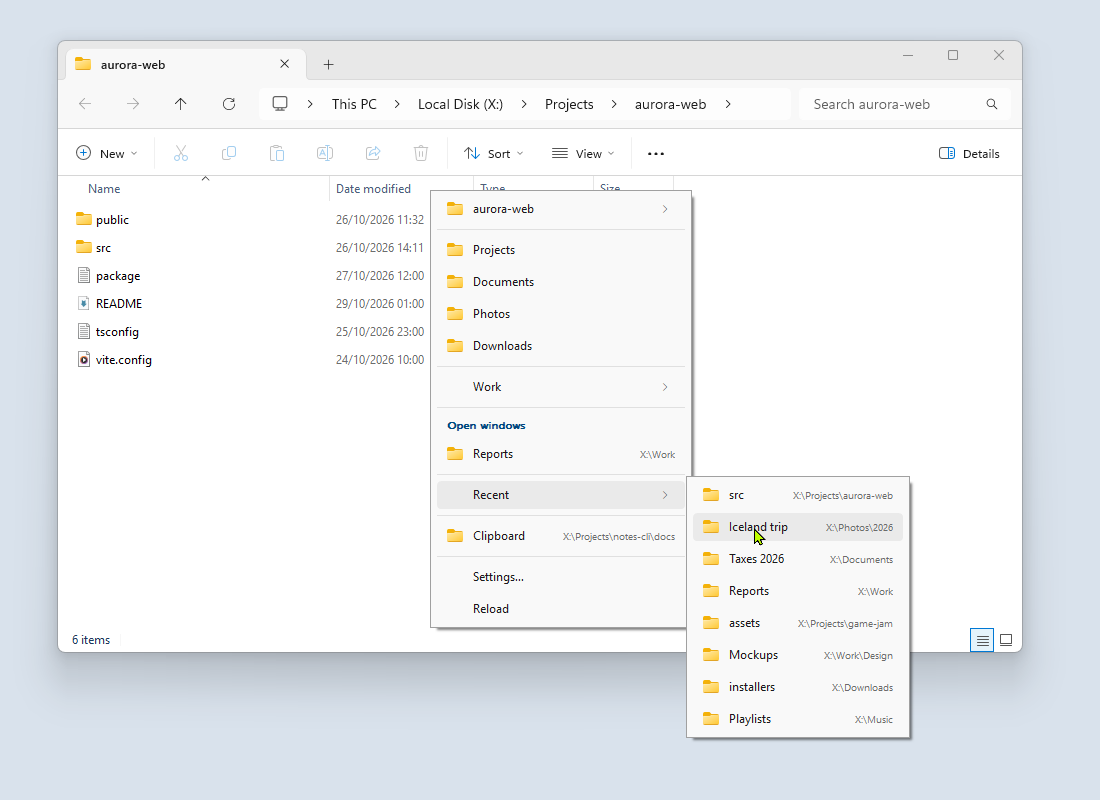
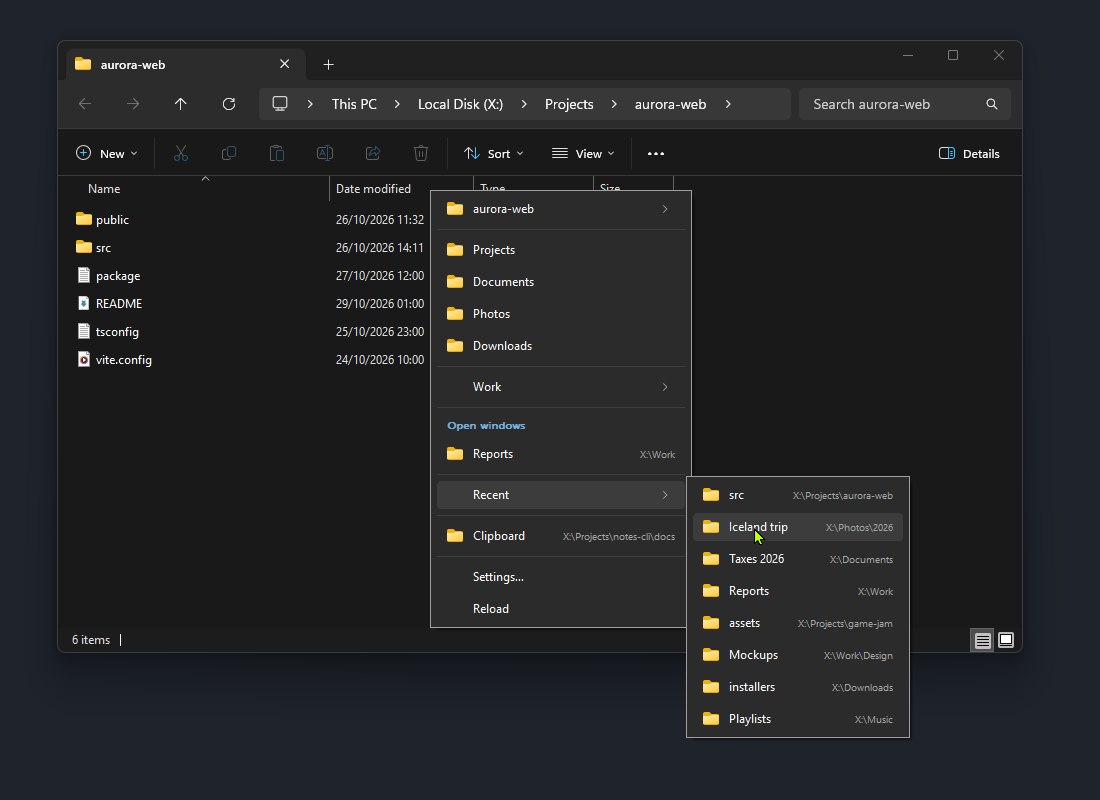
The folder menu is a native popup menu that Folderite opens at the pointer. It lists places to go. When you pick one, the window you opened the menu over goes there.
Ways to open it
| How | Opens the menu for | Current folder shown | Picking a folder |
|---|---|---|---|
| Middle-click in a supported window | The window you clicked | Yes, when Folderite can read it | Navigates that window |
| Keyboard shortcut | The window in front | Yes, when that window is supported | Navigates that window, or opens a new Explorer window if it is not supported |
| Left-click the tray icon | No window | No | Opens a new Explorer window |
Middle-click needs the pointer over a supported window, and Folderite swallows the click, so the app under the pointer never sees it. The menu is built at that moment from your settings, so it always reflects the current favorites, windows, history and clipboard.
The sections, top to bottom
Sections are separated by lines. A section that has nothing to show leaves out its line too, so the menu never has a doubled or a trailing line.
| Section | Shown when |
|---|---|
| Current folder | Folderite can read the folder of the window |
| Favorites | You have favorites |
| Open windows | Show open windows is on, and another window is open on a folder |
| Recent | Recent folders is above 0 and there is a folder to list |
| Drives | Show drives is on (off by default) |
| Clipboard | Show clipboard folder is on, and the clipboard holds a folder path that is not the current folder |
| Settings… and Reload | Always |
Turn the optional sections on and off, and set the number of recent folders, on the Menu page of Settings. The matching config keys are in the config reference.
Current folder
The first item is named after the folder you are in, for example "aurora-web", and opens a submenu. It is a submenu rather than a folder to click, because you are already there. It holds:
- Copy path: puts the full path on the clipboard as text.
- Your actions, in the order you set them. The starter setup has Open terminal here. An action runs its command with the folder as the working directory, and
{path}in its arguments is replaced by the folder. See Actions in Settings. - Add to favorites, after a line. It adds the folder to the end of your favorites and saves. It is left out when the folder is already a favorite, wherever it sits in your groups.
This item is missing when Folderite cannot tell which folder the window shows:
- the menu was opened from the tray icon, or with the shortcut over a window that is not supported,
- Explorer is on a virtual place such as This PC, Home or a search result,
- the window is Blender's file browser, which does not say which folder it shows.
On the desktop, the current folder is your Desktop folder.
Favorites
Your favorites appear in the order you set. Each one is a folder you click to go to. Environment variables in a path, such as %USERPROFILE%, are expanded. A favorite with no name shows the folder's name. A favorite with no folder and no items is skipped.
A single & in a name marks the shortcut key, as in Accelerator keys.
Groups and separators
A favorite with items under it becomes a submenu, for example Work with Specs, Reports and Design inside. Groups can nest. An empty group shows "(empty)" when opened.
A favorite named - becomes a line. In Settings, use the separator button for this.
Favorites with subfolders
Turn on Show subfolders in a submenu for a favorite and it becomes a submenu of its subfolders:
- The folder itself is the first item, in bold, so you can still go to it. A line follows.
- The subfolders are listed after that, sorted by name in Explorer's order ("file2" before "file10"), or Newest first by the time each folder was last changed.
- Hidden and system folders are left out.
- A list longer than 100 folders is cut at 100, and a dimmed line says "Showing the first 100 folders".
Folderite reads the disk only when you open that submenu. If a network folder or a drive takes longer than about a second and a half to answer, the submenu shows only the folder itself instead of freezing the menu.
Open windows
Under the heading Open windows, Folderite lists the folders open right now in:
- Windows Explorer, including every tab,
- Directory Opus,
- Total Commander,
- XYplorer.
It shows up to 10, leaves out the folder you are in, and lists each folder once even if it is open in several windows. The dimmed text on the right is the parent folder.
File dialogs, Blender and the desktop add nothing to this list.
Recent folders
The Recent submenu lists the folders you use most, best first. It shows up to Recent folders entries (15 by default, 0 to 50 in Settings). It leaves out the folder you are in. A folder can appear in both Open windows and Recent. With 0, the section is hidden.
Folderite learns folders without any action from you. It notes a folder when you move to it in Explorer, a file dialog, Directory Opus, Total Commander or XYplorer, when you bring such a window to the front, when you open the menu over it, and when you pick it from the menu. A repeat within 2 seconds counts once. Folders that match a pattern under Exclusions, Don't remember these folders, are never recorded. Use History in Settings to look at the list, remove a folder, or clear it.
How recent folders are ranked
Folderite ranks folders by frecency, a mix of how often and how recently you used each one, in the style of zoxide.
Each visit adds 1 to a folder's count. The count is then multiplied by how long ago the folder was last used:
| Last used | Count multiplied by |
|---|---|
| Within the last hour | 4 |
| Within the last day | 2 |
| Within the last week | 0.5 |
| Longer ago | 0.25 |
The folder with the highest result comes first. A tie goes to the folder used most recently.
The boost for the current app. Folderite also counts the visits made in each app, using the program name (explorer, notepad, and so on). When you open the menu over an app, each folder's score gets three times its score in that app, worked out the same way. A few visits in that app outweigh a modest lead elsewhere, so over Notepad's Save dialog the folders you use with Notepad rise. A folder you use far more overall still wins. Opening the menu from the tray icon has no app, so there is no boost.
Folderite keeps at most 1,000 folders. When the total of all counts grows past 9,000, every count shrinks by 10 percent and folders that fall below 1 are dropped. History is saved to history.json every minute and when Folderite exits. See Files and logs.
Drives
With Show drives on, a Drives submenu appears after Recent. It lists each drive as "Local Disk (C:)" or by its volume label, with the free space on the right, for example "12.3 GB free of 476 GB". It is read when you open the submenu, and a drive that does not answer in time is listed without sizes.
Clipboard folder
The Clipboard item appears when the clipboard holds text that is one full folder path, such as C:\Projects\notes-cli\docs. Surrounding quotes are ignored. The path must exist, except for network paths starting with \\, which are accepted as they are. Text with several lines, text over 1,024 characters, and relative paths do not count. The path shows dimmed on the right. The item is hidden when the clipboard folder is the folder you are already in.
Settings and Reload
The last two items are always there.
- Settings… opens the Settings window, or brings it to the front if it is open.
- Reload reads
config.jsonagain. Folderite also reloads it by itself when the file is saved, so you need this only if something went wrong. If the file has an error, Folderite shows a notification with the message.
Accelerator keys
Every named item has an accelerator key. While the menu is open, press the letter to pick the item or open the submenu.
- In a name you write yourself, put
&before the letter:&Projectsis picked with P. Type&&for a plain ampersand. - When no item has the letter marked, items whose name starts with that letter match. This is how you reach recent folders, open windows, subfolders and drives, which carry no
&. - The built-in items use these letters: C for Copy path, A for Add to favorites, R for Recent, V for Drives, L for Clipboard, S for Settings…, D for Reload. The starter favorites use H, D, W and O. The starter action uses T.
- If one letter matches only one item in the open menu, it is picked at once. If it matches several, the first press highlights the next match after the current one, and each further press moves to the following match. Press Enter to pick the highlighted item.
The arrow keys, Enter and Esc work as in any Windows menu.
What picking a folder does
- In a supported window, Folderite brings the window to the front and sends it to the folder. In Explorer with tabs, it changes the tab you are in. In a file dialog, it keeps the file name you typed. In a folder picker, it navigates the picker instead of accepting the folder. For each app, see Supported apps.
- From the tray icon, or with the shortcut over an unsupported window, it opens the folder in a new Explorer window. The same happens on the desktop.
- Folderite records the folder in your history, with the app it was used in.
- If the window cannot be sent there, Folderite shows a notification saying it could not open the folder in that app.
Pressing Esc, or clicking outside the menu, closes it and does nothing.
Where middle-click does not open the menu
Middle-click acts normally in all of these.
- Windows Folderite does not support. In a browser, an editor or any other app, middle-click works as it always has.
- The tab row in Windows 11 Explorer. Middle-clicking a tab still closes it. The exemption covers the title-bar row. Where Explorer has no such row, as on Windows 10, the whole window counts.
- Apps you excluded. Add a program name under Exclusions, Don't open the menu in these apps (
disabledProcesses), for examplenotepad. The name is that of the program that owns the window. A file dialog belongs to the app that opened it, so excludingnotepadalso covers Notepad's Open and Save dialogs. - While paused. Choose Pause in the tray menu to turn off middle-click and the keyboard shortcut until you choose Resume. Pause is not saved: Folderite starts running again after a restart. Left-clicking the tray icon still opens the menu while paused.
- The desktop, when you turned it off. The desktop is on by default. Work on the desktop on the Menu page controls it.
- Blender windows other than its file browser. Only the "Blender File View" window counts. For the other apps, see Supported apps.
An excluded app also changes the shortcut: with an excluded app in front, the shortcut opens the menu as it does for an unsupported window, so picking a folder opens a new Explorer window.
Keyboard shortcut
The shortcut is off until you set one. Open Settings, General, click the Keyboard shortcut box and press the keys you want, for example Win+Shift+F. Press Backspace or Delete in the box, or click Clear, to remove it. The config key is hotkey, written like Win+Shift+F.
- It needs Ctrl, Alt, Shift or Win. Function keys (F1 to F24) work alone.
- It opens the menu for the window in front, using the control that has the keyboard focus. Total Commander and Directory Opus use that to pick the left or right panel. The menu appears at the pointer when the pointer is over that window, and at the center of the window otherwise.
- The tab-row exemption does not apply, because no click is involved.
- Press it again while the menu is open to close it.
- It does nothing while paused.
- With no supported window in front, the menu opens at the pointer with no current folder, and picking a folder opens a new Explorer window.
- If another app already uses the shortcut, Folderite shows a notification, and Settings shows "This shortcut is already used by another app. Pick another one." under the box.
The tray icon
Folderite lives in the notification area. The tooltip reads "Folderite" followed by the version.
- Left-click opens the folder menu, with no current folder. Picking a folder opens a new Explorer window. This works while paused and does not depend on any window.
- Right-click opens the tray menu.
| Tray menu item | Key | What it does |
|---|---|---|
| Pause or Resume | P / R | Turns middle-click and the shortcut off, or back on. Not saved across restarts. |
| Start with Windows: On or Off | O | Turns starting at sign-in on or off. See Install. |
| Settings… | S | Opens the Settings window. |
| Edit config… | E | Opens config.json in the program Windows uses for .json files, or in Notepad if there is none. |
| Open config folder | F | Opens the config folder in a new Explorer window. |
| Reload | D | Reads config.json again. |
| Exit | X | Quits Folderite. |
Folderite also uses the tray icon for notifications: a config error, a keyboard shortcut that did not register, an action that failed to start, and a folder it could not open.