Open and Save dialogs
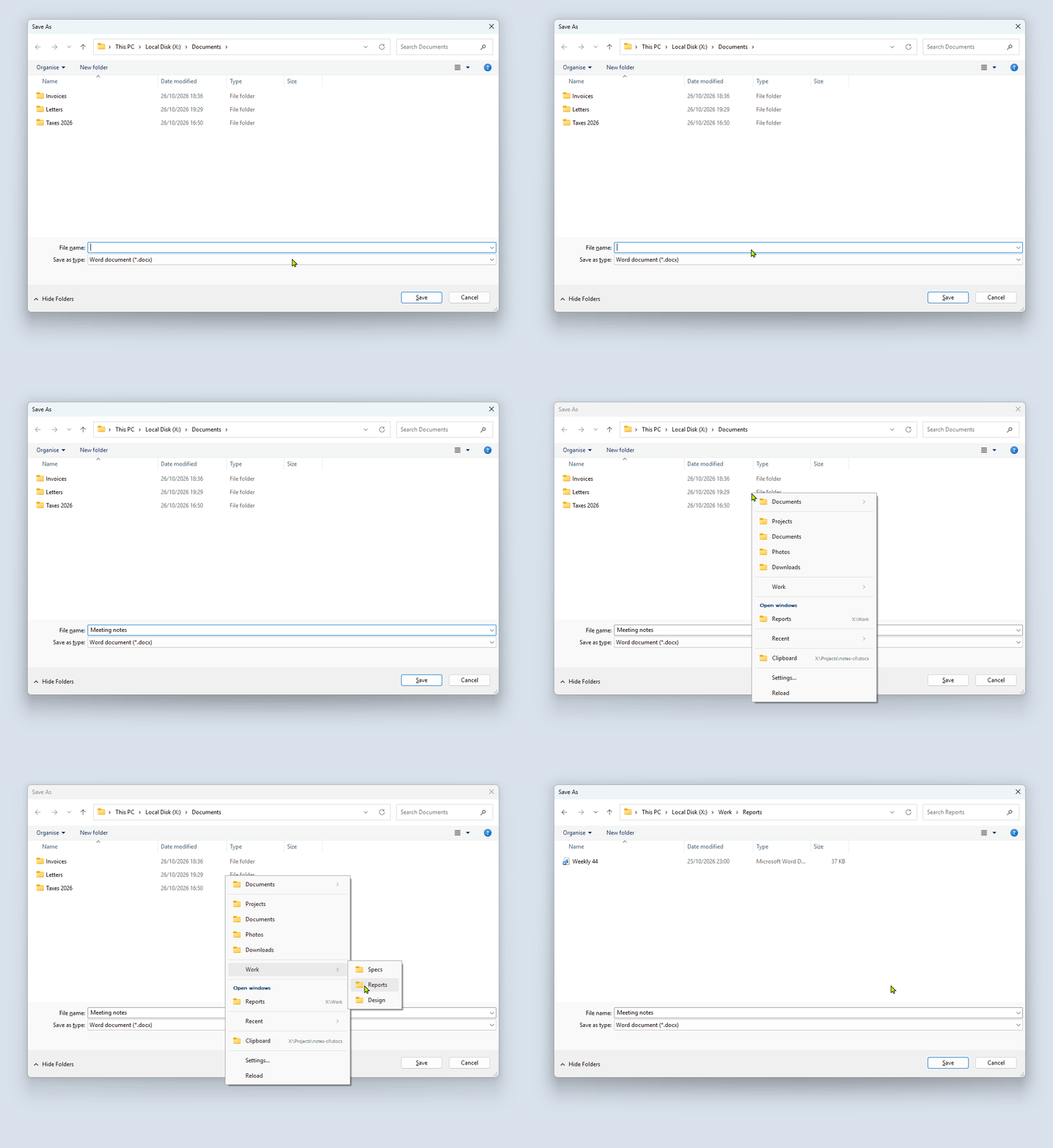
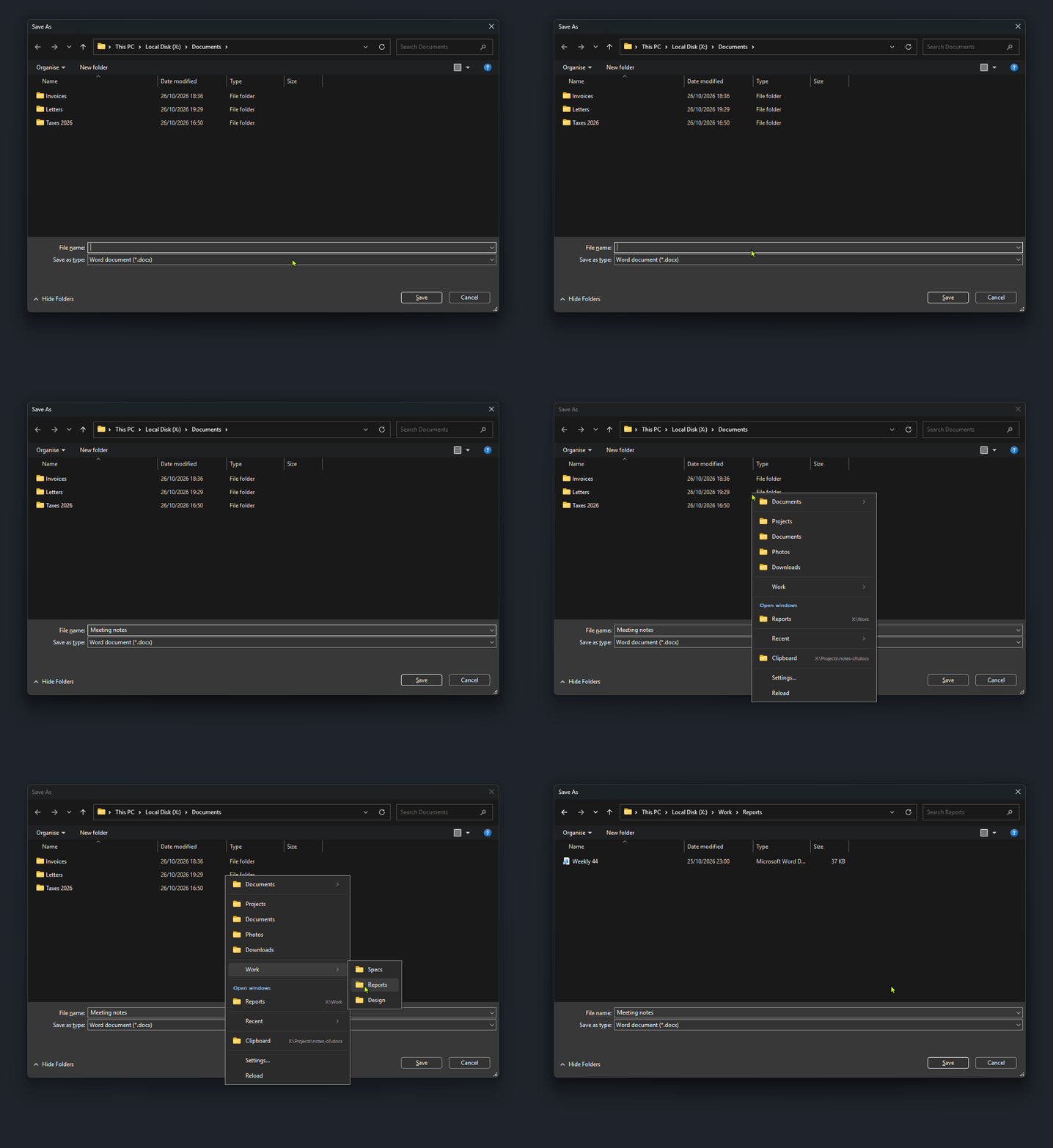
Folderite works in the standard Windows Open, Save As and folder-picker dialogs. Middle-click in one, pick a folder from the menu, and the dialog goes there.
Which dialogs count
A window counts as a file dialog when it is a standard Windows dialog (window class #32770) that hosts a file list. That covers the Open, Save As and folder-picker dialogs of programs such as Notepad, Office and browsers, and of anything else that calls the Windows common dialog. Dialogs that a program draws itself do not match, and neither do message boxes.
The menu opens when you middle-click anywhere in the dialog, or press the keyboard shortcut while the dialog is in front. A program in the Don't open the menu in these apps list is ignored, dialogs included.
Blender's file browser is not one of these dialogs. It has its own support, described in Supported apps.
Reading the current folder
Folderite reads the folder from the address bar of the dialog (the breadcrumb). Two things follow from that:
- The menu header shows the folder the dialog is in, with Copy path, your actions and Add to favorites.
- If the dialog is somewhere that is not a folder path, such as This PC or a library, there is no current folder. The menu still opens and navigation still works, but the current-folder submenu is missing, and so are the actions.
The folder you were in is also recorded in history under the program's name, which is how Recent favors the folders you use in that program.
Navigating and keeping your file name
Pick a folder in the menu and the dialog moves there. If you had already typed a file name, it stays.
In a Save dialog, Folderite types the path into the dialog's address bar and presses Enter there, so the File name box isn't touched.
In an Open dialog:
- Folderite puts the folder path in the File name box and presses the dialog's Open button. The dialog treats a folder path as "go there".
- It waits until the dialog shows the new folder.
- It puts your text back in the File name box.
The text is only restored if the box is empty or still holds the folder path. If you changed the box while the dialog was moving, Folderite leaves it alone. If you had typed nothing, the box stays empty.
An Open dialog with no file types uses the address bar, like a Save dialog.
Folder pickers
A folder picker (the dialog that asks you to choose a folder) has no file type box, and pressing its confirm button would accept the folder instead of opening it. So Folderite types the path into the dialog's address bar and presses Enter there, which opens the folder without choosing it. If it can't find the address bar, a tray notification says Couldn't open <path> in File dialog.
In folders such as Documents
When a dialog is in a known folder such as Documents, Downloads or Desktop, its address bar has no text box yet. Folderite presses Ctrl+L to open one, then puts the keyboard focus back where it was, so Enter still saves or selects. It only presses the keys while the dialog is in front. If the dialog isn't in front, the move fails with the same notification.
Start folders
Normally a dialog opens wherever the program or Windows decides. Folderite can move each new dialog to a folder of your choice, as soon as it appears. There are two ways to say which folder, both on the Dialogs page in Settings:
- Start in the last folder used (
"dialogLastFolder": true, off by default) starts a program's dialogs in the folder you last used in that program. - Folders for specific apps (
"dialogFolders") sets a fixed folder for named programs.
In config.json:
{
  "dialogLastFolder": true,
  "dialogFolders": [
    { "app": "notepad", "path": "D:\\Notes" },
    { "app": "winword", "path": "%USERPROFILE%\\Documents\\Reports" }
  ]
}
See Config file for the file format.
Which folder wins
For each new dialog, Folderite goes through these in order and uses the first that gives a folder:
- A folder for that app. The first row in
dialogFolderswhose app matches the program's file name (ignoring case and any.exe) and whose path is not empty. This applies even when Start in the last folder used is off. - The last folder used in that app, if Start in the last folder used is on. This is the folder in history that was most recently recorded for that program, skipping folders matched by an exclusion pattern. Folderite records the folders of file dialogs in history whether or not the option is on, so it works as soon as you turn it on. A program whose dialogs Folderite has never seen has nothing to go on.
- Nothing. The dialog opens where it would have opened anyway.
% environment variables in a dialogFolders path are expanded.
Which apps
Any program whose dialogs Folderite recognizes. The program is identified by its file name without .exe, lower-cased: notepad, winword, chrome. That is the name you put in the App box. The Exclusions list applies: no start folder is set for a listed program.
When it does not apply
Folderite leaves the dialog alone when:
- No folder is found by the rules above.
- The folder does not exist. This is checked once, when the dialog appears, so a drive that is not ready yet means no move.
- The dialog is already in that folder.
- The program already put a folder in the File name box (a path with
\or/in it), which means it chose where to save. - The dialog does not show a readable folder within about 3 seconds. Folderite then gives up on that dialog. If a folder picker is showing but Folderite can't drive its address bar in that time, it writes
Couldn't move the <app> file dialog to <path>.tofolderite.log.
Each dialog is handled once, the first time it comes to the front. After that it is yours: Folderite does not pull it back if you browse elsewhere. Pausing Folderite (the tray menu, or Pause Folderite on the General page) stops the middle-click menu but does not stop start folders.
Moving the dialog uses the same steps as the menu, so it also keeps a file name that was already typed.
Elevated dialogs
Windows does not let a normal program control a window that runs as administrator, and Folderite follows that rule. Unless Folderite itself runs elevated, it can't navigate a dialog from an elevated program, so picking a folder does not move the dialog, and a start folder can't move it either. Dialogs in programs started normally are not affected.
Known limits
- Only standard Windows file dialogs work. Dialogs a program draws itself are not recognized.
- The dialog must show a real folder to give the menu a current folder. Places such as This PC have none.
- Start folders move the dialog after it appears, so you may see it open in its usual folder and then jump. A dialog that is slow to load can take up to about 3 seconds.
- Start folders need the folder to exist when the dialog opens.
- Elevated dialogs are out of reach unless Folderite runs elevated too.
If a dialog does not respond, see Troubleshooting.